
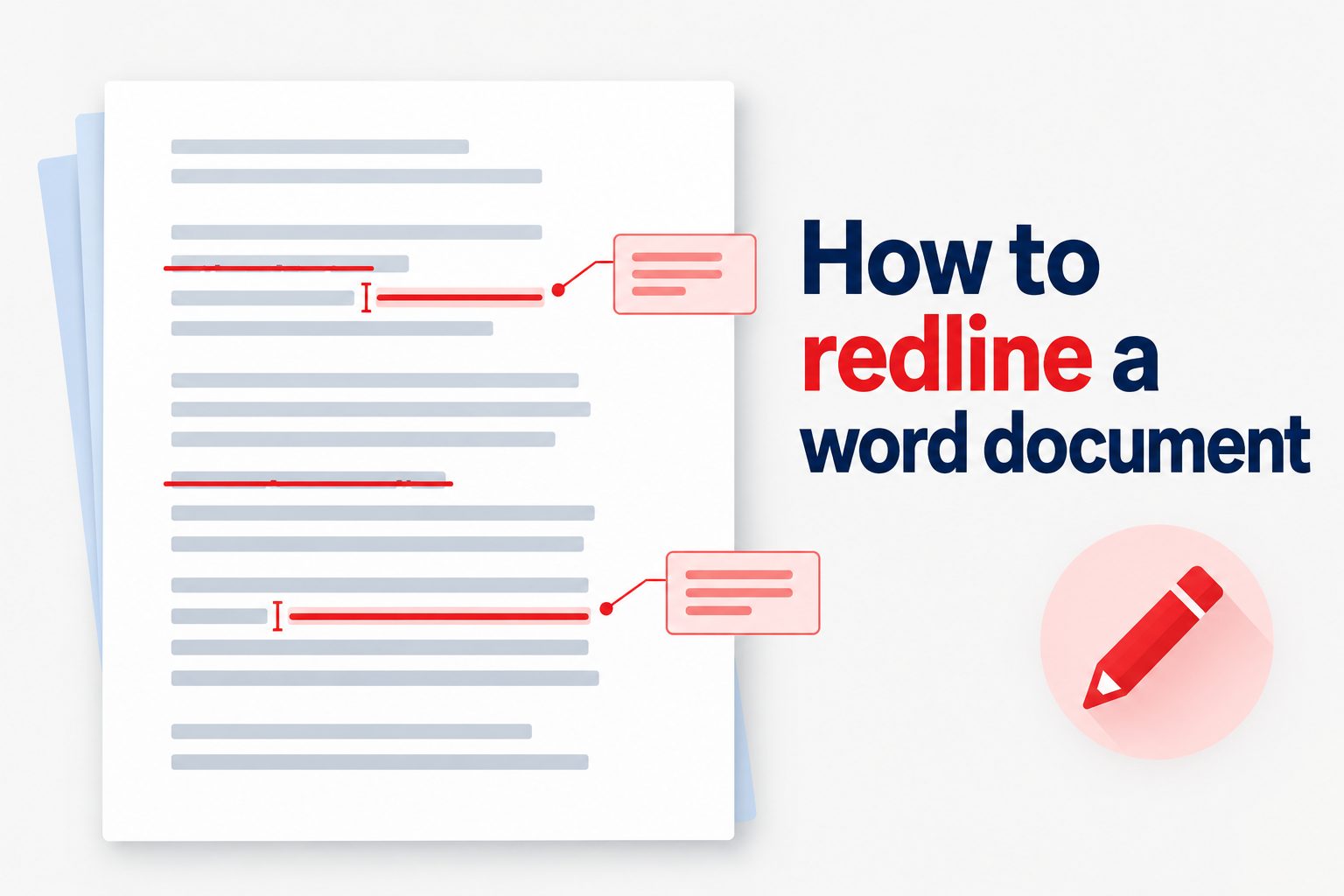
Knowing how to redline a Word document makes reviews clearer, faster, and easier to manage. Whether you are editing a contract, revising a report, polishing a proposal, or sharing feedback on a team document, redlining lets everyone see what changed and why. Instead of quietly replacing text, you can mark insertions, deletions, comments, and formatting updates for others to review. This article explains what redlining means in Microsoft Word, how to use Track Changes effectively, and how to handle comments, approvals, and final versions without losing important edits. You will also learn practical review habits, common errors to avoid, and ways to keep document collaboration professional and organized.
What Redlining A Word Document Means
Redlining is a visual method for showing proposed edits rather than hiding them in a revised document.
1. Visible Text Changes
When you redline a Word document, additions and deletions remain visible until someone accepts or rejects them. Added text may appear underlined or in a different color, while deleted text may appear crossed out. This gives reviewers a reliable record of every proposed wording change.
2. Track Changes In Microsoft Word
In Microsoft Word, redlining usually means turning on the Track Changes feature. Once enabled, Word records edits automatically as you type, delete, move, or format content. The feature is useful because it creates a review trail without requiring separate copies of the same document.
3. Comments And Redlines
Comments are closely connected to redlining, but they serve a different purpose. A redline changes document content, while a comment asks a question, explains a concern, or suggests an action. Using both tools together helps reviewers communicate without rewriting each other’s reasoning.
4. Proposed Rather Than Final Edits
A redlined document is not necessarily the final document. It is a working version that presents proposed changes for review. The owner, client, manager, or other authorized reviewer can then decide which edits should remain and which should be removed before finalizing the file.
5. Shared Review Accountability
Redlines show who made changes when Word is connected to individual user names or review identities. This accountability is especially useful for business documents, policy drafts, legal agreements, and academic work because it reduces confusion about the source and purpose of each revision.
6. A Clear Review Record
The main value of redlining is clarity. Instead of comparing two nearly identical files line by line, reviewers can focus directly on marked changes. This saves time, prevents missed revisions, and creates a more orderly conversation around important wording, requirements, and decisions.
Why Redline A Word Document
Redlining supports careful collaboration when accuracy, approval, and traceability matter.
- Clear Communication: Every proposed change is visible, so reviewers can discuss the exact wording instead of relying on memory.
- Faster Reviews: Markup directs attention to changed sections and reduces the time spent comparing separate document versions.
- Better Accuracy: Reviewers can catch unintended deletions, altered numbers, missing terms, and formatting changes before approval.
- Reliable Decisions: Accepting or rejecting each change creates a deliberate final version rather than an accidental mixture of edits.
- Useful History: A redlined copy provides a practical record of how a document developed during review.
- Professional Collaboration: Teams can give focused feedback while preserving the original author’s text and intent.
How To Start Redlining In Word
Set up the document carefully before making edits so the review process begins with a dependable baseline.
- Save A Copy: Create a clearly named review copy before editing, especially when the original must remain untouched.
- Open The Review Tab: In Word, select the Review tab to find Track Changes, comments, and reviewing display controls.
- Turn On Track Changes: Select Track Changes before changing text so Word records your edits as markup.
- Choose A Display: Use All Markup when you need to see every edit, or Simple Markup when you need a cleaner reading view.
- Check Your Name: Confirm that Word identifies you correctly so other reviewers can recognize your changes.
- Read Before Editing: Review the full section first to avoid making isolated changes that conflict with the document’s wider meaning.
- Make Deliberate Revisions: Edit one issue at a time, using comments when an explanation or question is more appropriate than a direct change.
Key Redlining Features In Word
Word includes several review tools that help you make, inspect, and manage proposed edits.
1. Insertions And Deletions
Tracked insertions show new words, phrases, or punctuation, while tracked deletions preserve removed text until a decision is made. Reviewers should examine both equally carefully. A small deleted word such as “not” or “only” can change the meaning of an entire sentence.
2. Formatting Markup
Track Changes can record formatting updates such as font changes, bold text, paragraph alignment, and spacing. These changes can matter in branded reports, formal submissions, and templates. If formatting markup makes reading difficult, reviewers can temporarily filter it while still preserving the review record.
3. Comments For Context
Use a comment when you need clarification, want to flag a risk, or wish to explain why a suggested change matters. Comments work best when they are specific and respectful. Refer to a precise sentence, explain the concern, and state what response or decision you need.
4. Reviewing Pane
The Reviewing Pane gives a summary of changes and comments in the document. It is useful for checking whether a file contains more markup than expected or for locating edits in a long document. Treat it as a review dashboard, not a replacement for reading the text itself.
5. Display For Review Options
Display settings control how much markup you see, not whether the edits still exist. All Markup shows detailed changes, No Markup shows a clean preview, and Original shows the earlier version. Switching views helps you assess readability, but final approval still requires accepting or rejecting changes.
6. Accept And Reject Controls
Accept and Reject controls turn proposed edits into final decisions. You can handle changes individually or process all changes at once, but individual review is safer for important documents. It lets you verify each revision against the document’s purpose, facts, tone, and approved instructions.
Redlining Workflow For Better Reviews
A consistent workflow prevents rushed decisions and makes the document easier for everyone to review.
1. Start With The Correct Version
Before redlining, confirm that you are working from the latest approved draft. Editing an outdated version can create duplicate work and conflicting suggestions. Check the file name, revision date, and document owner when the review involves several people or multiple rounds of feedback.
2. Review The Purpose First
Read enough of the document to understand its audience, goal, and required tone before making changes. A sentence that seems unclear in isolation may make sense in context. This step helps you avoid edits that improve grammar but weaken the intended message or legal meaning.
3. Make Focused Changes
Address one type of issue at a time, such as factual accuracy, clarity, grammar, or formatting. Focused passes make your reasoning more consistent and reduce the chance of overlooking a section. They also make it easier for the author to respond to feedback in a logical order.
4. Explain Significant Edits
Add a comment when a revision changes meaning, removes a requirement, or affects a decision. Do not assume that the change is self-explanatory. A short explanation can save several review cycles and helps the document owner evaluate the suggestion with the right context.
5. Review Other People’s Markup
When reviewing another editor’s redlines, evaluate the change rather than the person who made it. Check whether the revised wording is accurate, clear, and consistent with the document. If you disagree, use a comment or a counterproposal instead of silently overwriting the edit.
6. Finish With A Clean Read
Before sending the document onward, view it with markup hidden and read it as the final audience would. This clean read catches awkward transitions, duplicated words, and layout problems that may be difficult to notice when colored markup and comment balloons are visible.
Common Redlining Mistakes To Avoid
Small review habits can create major confusion when a document passes through several hands.
1. Editing Before Track Changes Is On
Making edits before enabling Track Changes is one of the most common mistakes. Those changes may be impossible for others to identify later. Turn tracking on before you begin, and if you forget, compare the edited copy with the original before distributing the document.
2. Accepting All Changes Too Early
Accepting all changes before reviewers have responded removes useful evidence of what was proposed. Keep the redlined version intact until the appropriate person has reviewed it. For important work, save a separate final copy after the decisions are complete and confirmed.
3. Using Vague Comments
Comments such as “fix this” or “unclear” do not give the author enough direction. Explain what is missing, confusing, inaccurate, or risky. A useful comment points to the issue, provides relevant context, and suggests the type of answer or revision needed.
4. Changing Meaning Without Explanation
Some edits improve style, while others alter commitments, deadlines, responsibilities, or scope. Never treat a meaning-changing revision as a simple copy edit. Mark the change clearly and explain it in a comment so the decision maker understands its possible effect before accepting it.
5. Ignoring Formatting Changes
Reviewers sometimes focus only on words and overlook formatting markup. However, formatting can affect document hierarchy, accessibility, readability, and branding. Check headings, lists, tables, spacing, and emphasis carefully, particularly in client-facing documents or documents that will be converted to another format.
6. Sending A File With Unresolved Markup
Before delivering a final document, check for remaining comments and tracked changes. A file that still contains unresolved markup can confuse readers or reveal internal discussions. Use the Reviewing Pane and a clean display view to confirm that the shared version contains only approved content.
Practical Redlining Examples
These common situations show how redlining supports clearer decisions in real documents.
1. Revising A Client Proposal
A sales manager may redline a proposal to clarify deliverables, revise timelines, and improve pricing language. Track Changes lets the writer see exactly what was adjusted, while comments can explain why a promise was softened or why a service description needs approval from another department.
2. Reviewing A Contract Draft
Contract reviewers often redline terms related to payment, obligations, liability, and termination. Each revision should be checked closely because small wording differences can have large consequences. Comments are valuable when a reviewer needs business confirmation before proposing or accepting a legal wording change.
3. Editing An Academic Paper
An instructor, supervisor, or peer reviewer can use redlines to correct structure, citations, grammar, and argument flow without erasing the student’s original work. Comments should explain patterns rather than merely identify errors, helping the writer improve the next draft as well as the current one.
4. Updating A Company Policy
Policy updates benefit from redlines because employees and managers need to identify what changed from the previous version. A tracked draft can show revised responsibilities, new procedures, or removed requirements. Once approved, the organization can publish a clean version for routine use.
5. Collaborating On A Report
Several contributors can redline a report when they need to verify facts, improve clarity, or align the final tone. To avoid clutter, each person should focus on their area of expertise and add comments only when a decision or clarification is needed from the report owner.
6. Preparing A Final Submission
Before submitting a grant application, formal letter, or business plan, a reviewer can redline inconsistencies in names, dates, numbers, and claims. The document owner then accepts approved edits and performs one final clean read, ensuring the submitted copy looks intentional and complete.
Best Practices For Redlining Documents
Professional redlining is not only about using the correct tools; it is also about making review easier for others.
1. Preserve The Original File
Keep an untouched original whenever the document has financial, legal, operational, or historical value. A separate tracked copy gives reviewers freedom to propose changes while protecting the source text. Clear file names also reduce the risk that someone edits or distributes the wrong version.
2. Use Consistent Review Rules
Agree on basic review expectations before a large collaboration begins. Decide who can make direct edits, who should comment only, who makes final decisions, and when feedback is due. Consistent rules reduce duplicate comments, conflicting changes, and unnecessary review rounds.
3. Keep Comments Constructive
Write comments in a calm, direct, and solution-focused tone. Describe the issue rather than criticizing the writer. For example, explain that a sentence may be unclear to a customer instead of calling it poorly written. Constructive comments encourage useful collaboration and quicker responses.
4. Limit Unnecessary Markup
Do not redline every personal style preference if the existing wording is already accurate and clear. Too much markup can hide important issues and overwhelm the document owner. Prioritize changes that improve accuracy, consistency, readability, compliance, or alignment with agreed document standards.
5. Resolve Comments Deliberately
Resolve a comment only after the question has been answered or the related action has been completed. Do not use resolving as a way to make comments disappear. If a decision matters later, make sure the final wording or an appropriate record reflects that decision.
6. Create A Clean Final Version
After all decisions are complete, accept or reject the remaining changes and remove resolved comments from the final copy. Save the clean document separately from the redlined review copy. This gives stakeholders a polished version while retaining a record of the review process when needed.
When To Use Redlining In Word
Redlining is most helpful when a document needs visible review, but it is not necessary for every minor update.
Use it for documents that need approval, accountability, or detailed discussion. Contracts, policies, proposals, reports, manuscripts, formal letters, and shared procedures are strong examples because readers often need to see exactly what changed before agreeing to a final version.
Use comments instead of direct redlines when you are unsure about the intended wording or lack authority to make the change. A comment invites the document owner to clarify the issue without creating a proposal that could be mistaken for an approved revision.
Avoid unnecessary redlining for tiny personal notes or documents with one author and no review requirement. In those cases, simple editing may be faster. The goal is not to create markup for its own sake, but to make collaboration and decisions easier.
For complex documents, use redlining in stages. First address content and accuracy, then review style and formatting, and finally create the clean copy. Separating these passes prevents reviewers from discussing presentation details before the core message is settled.
Before sharing any version, confirm the intended audience. Internal reviewers may need full markup and comments, while clients or general readers may need a clean copy. Choosing the right version protects clarity and prevents accidental disclosure of internal discussion.
Frequently Asked Questions
Is Redlining The Same As Track Changes In Word
In most everyday situations, yes. Redlining generally refers to showing edits visibly, and Microsoft Word’s Track Changes feature is the standard way to do that. It records insertions, deletions, formatting updates, and reviewer information until the changes are accepted or rejected.
Can I Redline A Document Without Changing The Original
Yes. Save a separate copy before you begin editing, then turn on Track Changes in the review copy. This preserves the original document while allowing reviewers to see every proposed revision. Clear file names help prevent confusion between the original, redlined, and final versions.
How Do I Hide Redlines In Word
You can change the document display to Simple Markup or No Markup from the Review tab. This changes what you see on screen, but it does not permanently remove tracked changes. To remove them from the document, you must accept or reject the changes.
Should I Accept All Changes At Once
Accepting all changes at once can be appropriate only after every revision has been reviewed and approved. For important documents, review changes individually because bulk acceptance can approve unintended wording, formatting, or deletions. Save a copy before making final decisions if a review record is needed.
Can Multiple People Redline The Same Word Document
Yes, multiple people can review the same document, although the process works best when responsibilities are clear. Each reviewer’s edits can appear separately, making it easier to identify contributions. Agree on deadlines and a final decision maker to prevent conflicting or repeated revisions.
What Should I Check Before Sending A Final Word Document
Check that all required changes have been accepted or rejected, all comments have been resolved or removed, and the document reads correctly in a clean view. Also verify names, dates, figures, headings, spacing, and file naming. These checks help ensure the final version is complete and professional.
Conclusion
Learning how to redline a Word document gives you a practical way to review content without losing the history of proposed edits. Track Changes, comments, reviewing views, and accept or reject controls work together to make revisions visible and easier to discuss.
The most effective redlining process starts with the right version, uses clear and purposeful edits, and ends with a careful clean review. When handled consistently, redlines help authors and reviewers make accurate decisions while keeping collaboration organized and respectful.